
So last night I was trying to replace background images inside the layout of an app called Wunderlist – a simple to/do list, but it caught my eye. The app provides around 20 inbuilt images that could be used as the app background, of which I really only liked one. So, off to google to find out how to hack Wunderlist. Turns out it wasn’t that hard. All I had to do was go to Applications, right click on Wunderlist, select ‘show package contents’, and then Contents > Resources, and you replace the images going by the name ‘wlbackgroundxx.jpg’, ‘wlbackgroundxxthumb.png’, ‘wlbackgroundxxthumb@2x.png’ – the first one being the background, the other two being thumbnails. I didn’t really find the need for the 2x anyway as the app doesn’t really have a second thumbnail (well, at least I haven’t seen yet). You have to make sure the thumbnails are in png and in 48×48 (and 96×96 for @2x) pixel size.
So after copying the pics, my next step is to figure out the easy way to create thumbnails. There are many ways to do this, but I guess on mac this would be the easiest (and I might very well be the last person to know about it).
Automator
The Automator is an inbuilt tool in mac which can be found in your applications folder (or from launchpad). I haven’t explored Automator too much at this stage, but this is what I used it for, and you’ll see how f’kin handy it is.
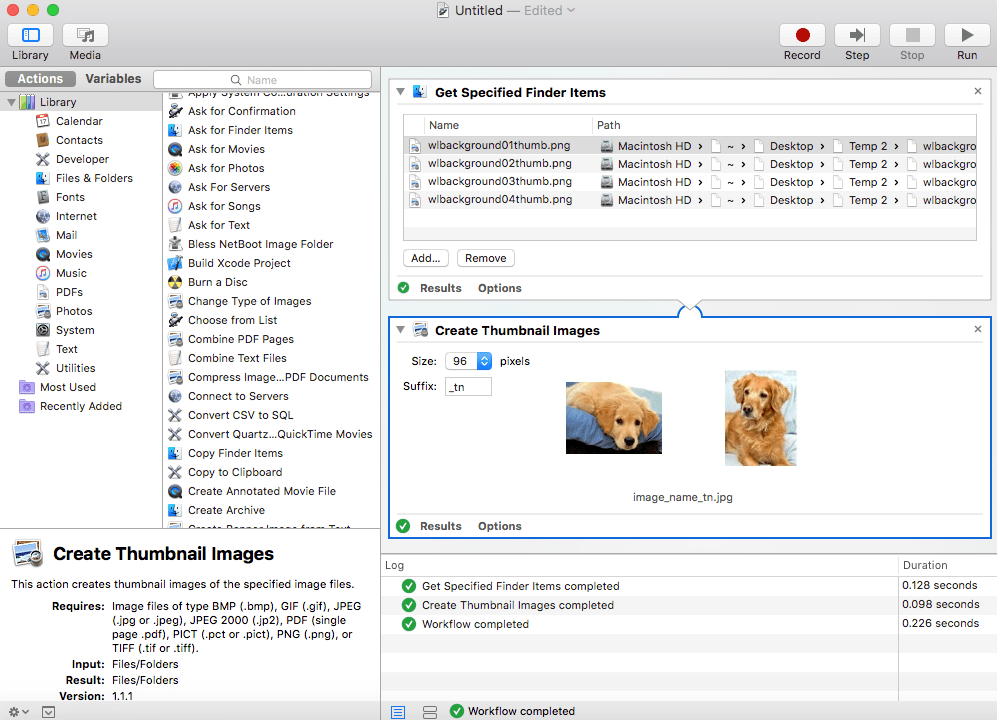
A screenshot of the app, and what I was trying to achieve. So, pretty much like all basic things in computing, its got an input, function (or operation) and output.
The input in this case is where you tell automator what files to be used to create thumbnails, and I used an action in this case called ‘Get Specified Finder Items’. You basically locate that action from the middle panel, and drag it over to the right. Then you need your function – ‘Create Thumbnail Images’ – this tells automator what to do with these files. The output is where you save the thumbnail images, and in this particular scenario, you don’t get the option to choose the destination. It automatically gets saved to the original folder.
However, there were two things that didn’t go right according to my requirements – the output file type which was jpg as there was no type conversion offered in this action, and the size of the thumbnail which even though I chose 96 pixels, gave me an output of 96×65.
So had to basically additional actions and workarounds to get what I needed. use ‘Change Type of Images’ to convert jpg to png, and finally use ‘Crop Images’ action to get my desired 48×48 png file – which is what Wunderlist app needed (the 96×96 thumbnail was optional for the app)
So yeah, Automator saved me some time and effort. There’s a lot more to the app, by the way, I just haven’t explored yet.
 The Dumb Coder