
Its a simple and easy way to quickly grab a screenshot on mac – either use Command + Shift + (4 or 3) – 4 giving you the option to choose the crop selection. The problem with this however is that the screenshots get saved to the desktop which I guess is okay, and not a big deal and quite useful for people who aren’t really computer savvy – which is why most people use mac anyway, and that’s why mac is so popular and good coz its easy to do things on it.
Now, if you don’t want the screenshots to be dropped on to the desktop, and rather would have them sorted into a folder – that is doable and is easy too.
Step 1 – is to create a new folder in your desired location, lets say my folder is called ‘Screenshots’ and placed on the desktop.
Step 2 – Fire up the terminal, and type the following command.
defaults write com.apple.screencapture location /Users/manu/Desktop/Screenshots
and press Enter – Boom!
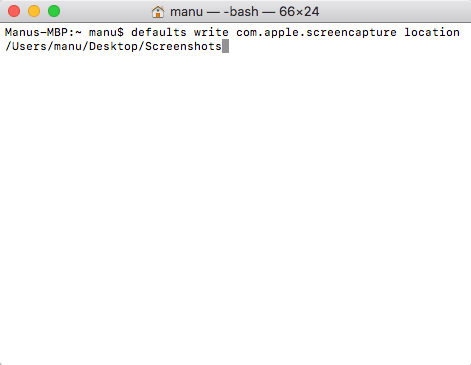
well, nothing obvious happens really, but if you were to now take a screenshot, it would go to the desired folder.
Note: to get the path of the folder, just drag and drop it onto the terminal, and the path would come up.
There’s few dos and don’ts regarding this; check out the link below for more info.
https://www.laptopmag.com/articles/change-macs-default-screenshot-directory
 The Dumb Coder