
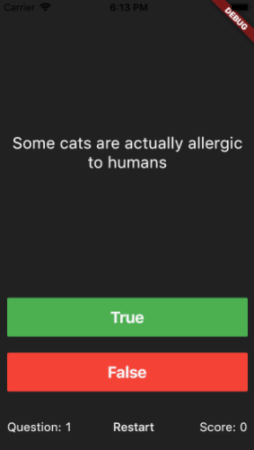
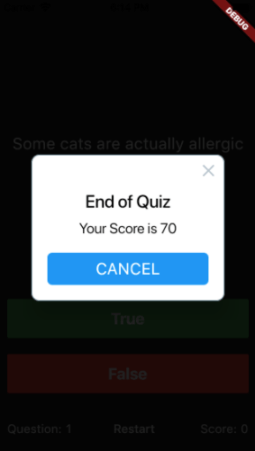
Alright, so the app has 13 True-False questions hard-coded into the program. For every correct answer you get 10 points, and 0 for every incorrect answer. At the end of the 13 questions, it shows an alert with your total score, and then restarts the quiz again. You also have a ‘Restart’ button to reset the quiz anytime you want. The UI looks like below.
Lets write the to-do list then.
- Create an outline
- Begin Code
- Add logic
- Import the assets
Note: This exercise is part of the Flutter Development Bootcamp course by Angela Yu in Udemy. It’s one of the best beginner Flutter courses in my opinion.
Create an Outline
The UI consists of the question text, two buttons for True and False, a text to display question number, a text to display the score and a Restart button.
The UI is pretty much straightforward. The only thing here to note is we want the question text to take up almost 70% of the screen size, and the remaining elements to be stacked around the bottom of the screen – thus giving the importance to the question.

Points to note
- the first child of Column which is an Expanded widget containing the question text is given a flex of 5 to take a larger portion of the screen.
- there’s two children of the Row at the bottom called Spacer() which basically creates a spacing between the children of the Row on either side of it.
Begin Code
One of the most important thing in the code for this app (and for any app that updates its UI during the course of the app) is that we will be using a Statefull widget. What flutter does is it repaints the UI when a function called setState() is called by updating anything specified inside this function. In our case, for each question, the question text, question number and the score needs to be updated – which means the state is going to change on every question.
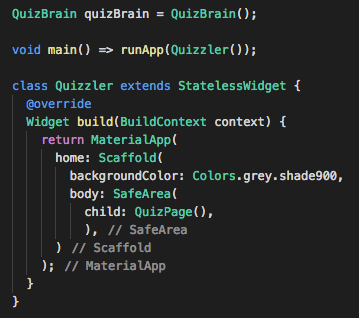
- so code begins as usual with void main() in which which runApp() calls Quizzler();
- Quizzler class extends a stateless widget
- SafeArea calls the child QuizPage()

- QuizPage class extends a Stateful Widget which in turns calls _QuizPageState which extends State<QuizPage>. Flutter writes these codes for you, so don’t have to worry about that.
- inside _QuizPageState we have our build method which is where we build our UI code
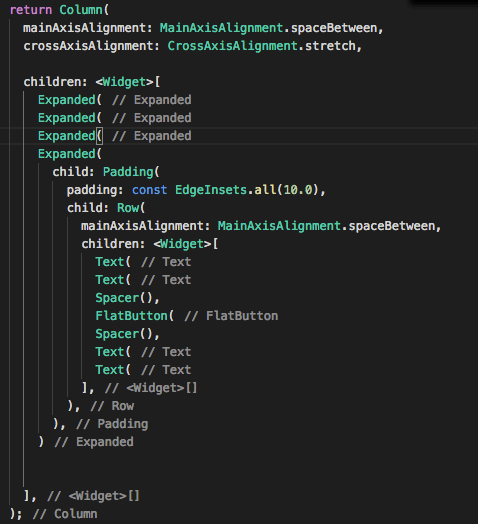
- As you can see, the column returned by build follows our outline created earlier
Add Logic
So the idea pretty much is – the user clicks on one of the buttons (true or false). The user picked answer is then compared against the hard-coded list of questions. if its correct, then score goes up; if not score remains same; regardless, next question appears. The app also has to do checks to find out if you’ve reached the end of the quiz.
now the second interesting part of the app (first being the stateful widget). We’re going to organise our code, kinda following the MVC structure.
First we will create a question.dart file. This file will contain the following Question class.
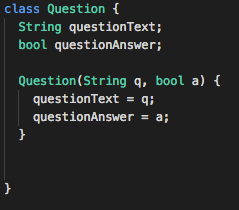
- Question class will have two properties – questionText and questionAnswer and a constructor to initialise them. pretty much straightforward.
- Every question in our app will be created on the basis of this class
Now, we create another dart file called ‘quiz_brain.dart’ (you could choose any name though). This file is going to contain our hard-coded questions, and most of our logic.
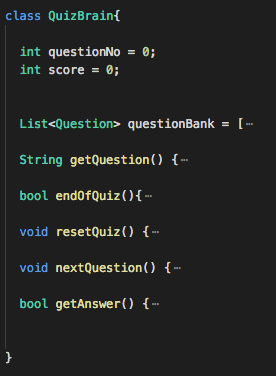
- each item in the List questionBank is a Question with both properties (question text and answer) hardcoded.
- 13 questions in total = 13 list items
- class QuizBrain has two properties questionNo and score to keep track of question number and score.
- class QuizBrain has the following five methods
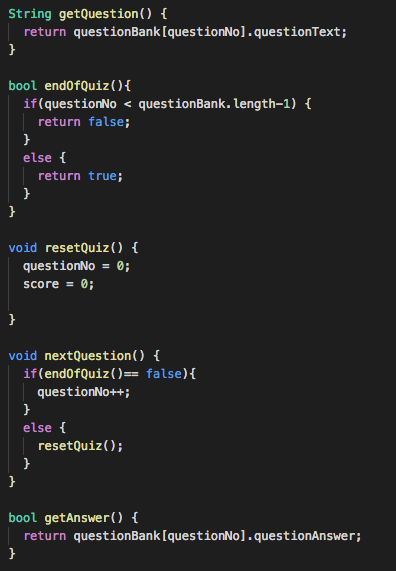
- getQuestion() returns the question based on the current value of questionNo which will be incremented each time nextQuestion() is called.
- endOfQuiz() checks if you’re at the end of the quiz by comparing the current questionNo with the length of the question list, and returns true or false.
- resetQuiz() resets the values of questionNo and score back to 0 essentially starting the quiz again.
- nextQuestion() checks if end of quiz if reached by calling endOfQuiz(); if not, then increments the questionNo so that next question is displayed (when setState() later repaints the UI), else if it has reached end of quiz, resetQuiz() is called to reset the quiz.
- getAnswer() returns the answer of the current question.
Pretty straightforward right!
Now, we have the functions on one dart page, and our UI is in another dart page. How do we access the functions across two different pages? Simple – you just import the file that contains the functions so that we can access the class. And then we create an object of that class to access its functions. So out main.dart will begin like this,
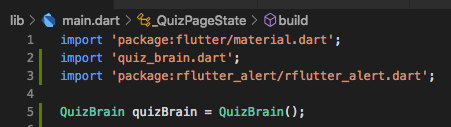
- Now using the quizBrain object, we can access the properties, question list and the methods of QuizBrain class.

- the Text widget for question Text calls getQuestion() to get the question
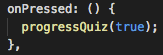
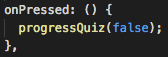
- The above two are onPressed() for the FlatButton for True and False. It calls a function inside main.dart called progressQuiz() – which is explained later in this article. It passes the user picked answer for comparison.

- the Text widget for getting the question number accesses the questionNo property of quizBrain class

- the Text widget for getting the score accesses the score property of quizBrain class
Now, the core logic of the app – checking the anwers and progressing to next. So, as mentioned earlier on click of either of the buttons (true or false), a function called progressQuiz() is called, and the corresponding user picked answer is passed as a Boolean value.
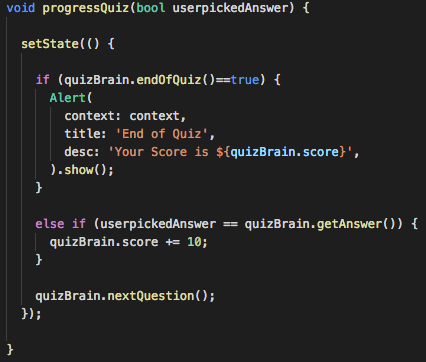
points to note
- The function checks if its the end of the quiz and if true, displays an alert (we’ll get to it later in this article).
- if it’s not the end of quiz, then it will check if the user picked answer against the answer property of the question object for the current question number. if that’s correct, then score will be incremented by 10. if not, score remains the same.
- Regardless of whether its the end of quiz or not, nextQuestion() is called. This will increment the question number. if it’s end of quiz, the app would display the alert, reset all values and the quiz will loop back to the first question. If its not the end of quiz, it will progress to the next question.
- Since the only parts of the UI that needs to be updated throughout the course of the app are – question text, question number and the score – and all of these values are updated within this particular function, all the contents of this function are placed within a setState() function so that it gets repainted each time.
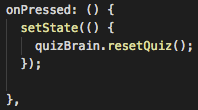
Lastly, there’s one more button which is the Restart button. It’s a FlatButton which just calls resetQuiz() from quizBrain within the onPressed() function.
Import the Assets
To spice up the UI, I’ve imported an asset which displays an alert at the end of the quiz with the score of that round.
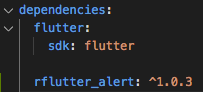
Here’s how the dependency is added in pubspec.yaml.
Pretty neat stuff!
To do: upload code to git
 The Dumb Coder