
It was a long-awaited update – going from D3000 to D7200, Its a much better equipment with many more features. Certainly not one of the high-end cams, but then again you decide what is best for you, and this is perfect for me for the moment.
One good thing with D7200 like many other cams is the fact that I can transfer my files over its wifi to my iPhone (loved this feature when I had my GoPro). For me its convenient as one of my insta accounts is more about click-and-share, with only minor edits in between. So, a quick rundown of how you can set up the file transfer over WiFi is mentioned below. This post shows how to establish connection between a Nikon D7200 and an iPhone. Also, you would need to install Wireless Mobile Utility (from Nikon Corportation) app on your iPhone.
step 1
Turn on the wifi on your cam. To do this, press Menu > Setup > Wi-Fi > Network Connection > Enable
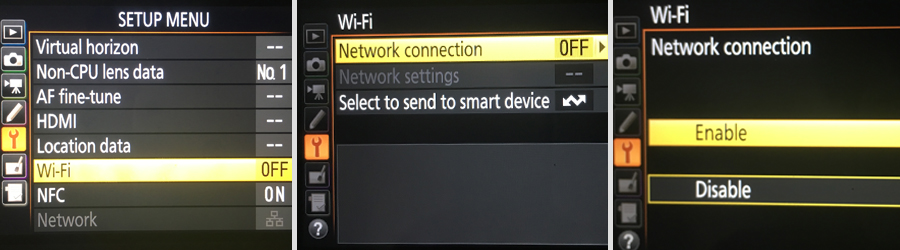
at this point, it turns on the wifi on your cam as an open connection.
Step 2
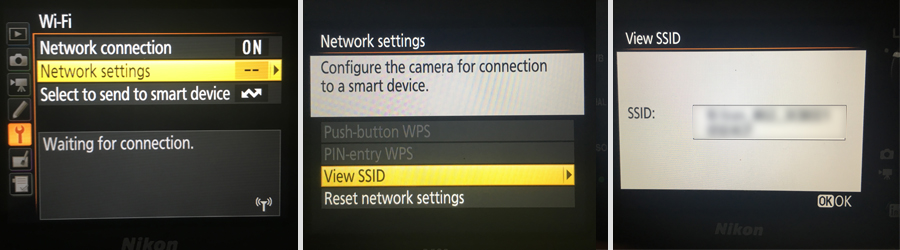
Now you gotta find out the name of your wifi. To do this, go back to Wi-Fi menu, and go to Network Settings > View SSID. This is what will appear on your phone under wifi connections. Like mentioned below, at this stage you can simply connect to this wifi since its an open connection, so can anyone else who might have this app on their phone, and can download your photos without you even noticing. So, I recommend the first time you do this, do when you’re at home in a secure environment OR take out your memory cards.
Step 3
Now we go an open the app. Go to the settings icon at the top-right corner, and select WMA settings. Tap on Password, and type in your password – this would password protect the connection. You can also see under Authentication, it would change from Open to WPA2-PSK-AES.
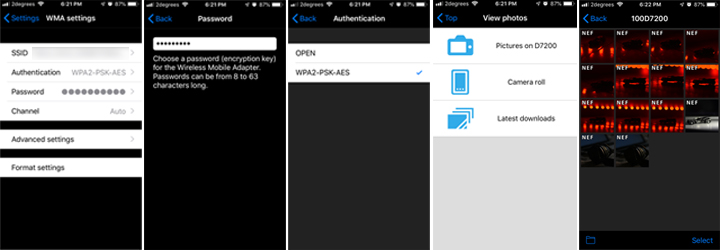
Once done, go back to your app – and view your photos, download them, or even control your cam (with restrictions) to take a picture.
Pretty simple right!
 The Dumb Coder