
I have a Desktop PC with the below configuration
- Motherboard: Gigabyte GA-H170-D3H
- Processor: Intel i7 6700
- RAM: G.SKILL Ripjaws V Series 8GB (2×4) – so a total of 4 RAM sticks
- GPU: NVIDIA Quadro K620
- PSU: FSP Raider 750W
- Storage: 1xSSD (240GB) + 1xHDD (1TB)
Issue: The computer fails the POST. I power on the PC, and the only thing that happens is the fan at the back of the case (connected to the PSU) attempting to spin for a second – and then stops. The Power LED lights up but not the LEDs on the Motherboard.
Straightaway, I know – it’s nothing to do with the Storage devices since that would pass the POST, but fail at the boot stage. So, pretty much it has automatically narrowed it down to – RAM, PSU, GPU or the Motherboard – the fault has to be within one of these.
CMOS Battery
Couple of videos that I watched began with resetting the CMOS battery – just in case so any custom BIOS settings don’t get in the way – i don’t know, i trust a geek who has 2.3M subs when he says this – i don’t ask why. Anyway, that didn’t have any effect other than having to update my primary boot device on BIOS down the lane.
RAM
This is probably the most obvious of all, and was the first thing that popped up in my head too – along with opening the case and giving it a quick clean. So, i’ve got 4 RAM sticks and below is what I attempted
- Unplug all 4 RAMs, and try to turn the power back on hoping for a beep sound – doesn’t happen, as in no change from the original scenario.
- Unplug the RAMs, take one RAM – and place it on each of the 4 slots one by one – each time after plugging it in – I power on the PC. No luck. Ideally, you only have to do it with one RAM stick, but I decided to completely write that possibility off by repeating the steps with the remaining 3 RAM sticks as well.
This rules out any RAM stick issues.
PSU
Must say I actually liked this method, since I haven’t done this in a while. So, the process is called the Paper Clip Test.
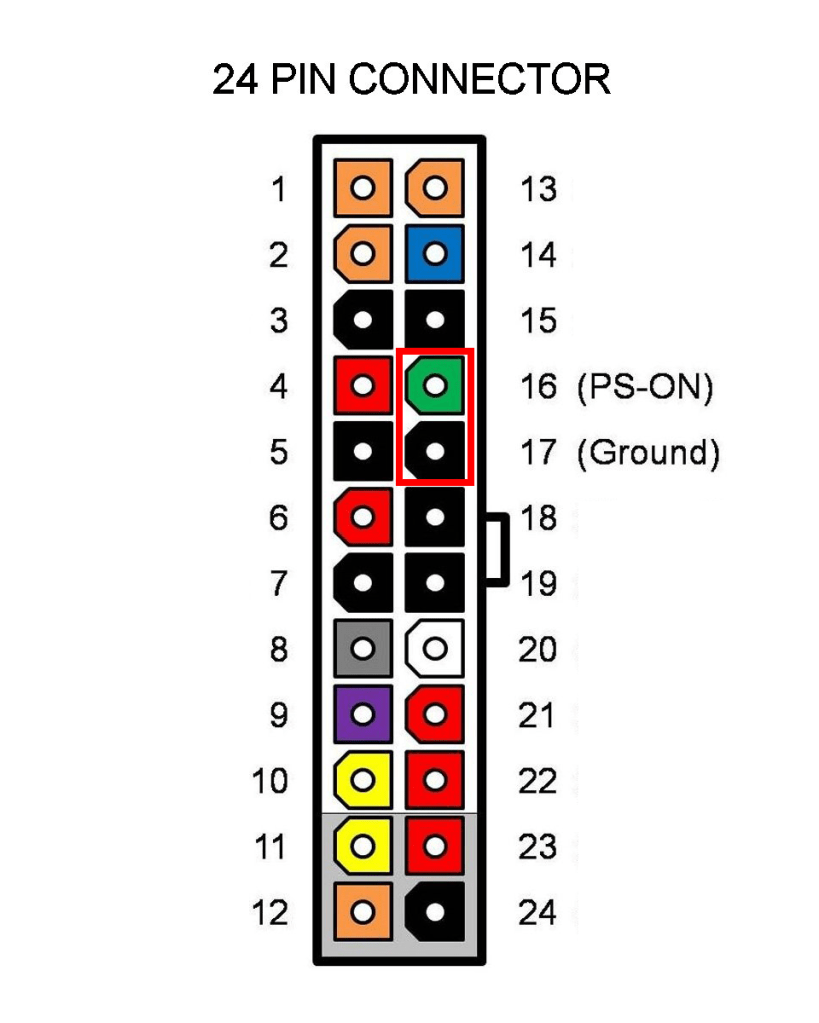
This is what you do,
- Turn off the power and the power switch on the back of your CPU case.
- Unplug the 24 pin connector (coming from the PSU) from your Motherboard.
- Straighten a paper clip and insert one end into the Green slot, and the other into any of the Black slots.
- Turn the power back on, and the power switch on the back of the case.
- If the Fan connected to your PSU starts working, then there’s a good chance your PSU is alright – and the 24 pin connector cable is also working good.
For me, this worked – So, I rule out any PSU issues as well.
Power Switch
This is another thing i learned along the way while doing my research. What if the power switch at the front panel of my CPU – the igniter switch – is broken, or the cable running from the power switch to the board is faulty. If that’s the case, this can mean that the board never gets the message to turn on the PC.
So, what you do is
- Follow the wires coming from the Power switch and find the connectors on the board
- These would be called POWER SW, RESET SW, POWER LED, HDD LED for the power button, the reset button, the power button LED, and the hard disk LED respectively. Note that you won’t see these connector names straightaway, but you’ll be able to figure out once you pull’em out. There would be markings on the board where each connector goes as well.
- To check if the power button is the issue, plug in the RESET SW into the slot for Power. If the CPU turns on now, we know that the Power button was the culprit. However in my case, same result – so i rule that out too.
GPU
Right now, am hoping it to be the GPU – even though i would have never wished for that in my life, but considering the other possibility is my board itself – I’d rather have a faulty GPU. Here’s how i test this,
- Unplug both storage devices – SSD and HDD
- Unplug all RAMs except one
- Unplug the GPU
- Connect my monitor to the HDMI on the board
Fingers crossed – turn it on. This was my last resort and at this point I had already booked in for a technician to visit me the next day to check this out. And it magically works! Now I have to confirm this is in fact the GPU. So, i start plugging things back in one at a time and power on to check if it’s still working – starting with the RAMs (one at a time), Storage devices.
the GPU is the last one to connect, and as soon as I do that – my PC doesn’t like it and doesn’t want to turn on. I take my friend’s advice and give it a quick delicate wipe with an earbud dipped in alcohol and plug it back in, but doesn’t make any difference.
So i guess my GPU is fried! I don’t know how long these things last, this lasted almost 5 years. But the timing feels scripted. I just brought Fifa 20 and NFS Payback like couple of days ago to play during the lockdown, and this happens – like of all the things – the GPU shits itself. But hey, could have been worse. So yeah, now I gotta replace it (if i get a good deal, or buy a new one)
Going back to the starting point, the event that triggered this (or at least the last action that happened with the PC) was me unplugging the DVI to HDMI cable running from my GPU to Monitor, so i can connect an HDMI to HDMI running from my laptop so I can extend my displays. I worked on my laptop for a bit and when i switched back the HDMI cable, found the PC dead. It’s almost like, that action of me unplugging the cable was somewhat rough and probably gave the GPU the shock – and fucked it up!
Anyway, that’s the story so far.
 The Dumb Coder